
You use your academic email every day at your institution, but once at home, it’s impossible to find the right link or password. This issue affects many staff members in the Normandy academy, especially since the merger of the former academies of Rouen and Caen. The good news: the ac Normandie webmail is accessible from any internet connection, without a VPN and without going through the ARENA intranet.
Why the old webmail ac Rouen link is still problematic
The merger of the academies of Rouen and Caen has created a particular situation. Two email domains have long coexisted: @ac-rouen.fr and @ac-caen.fr. Some staff still use bookmarks or documents that point to the old address webmail.ac-rouen.fr.
These old URLs may redirect to the current portal, but this is not always reliable. If the page doesn’t load or displays a certificate error, the usual reflex is to think that access is restricted to the institution’s internal network. This is not the case.
The address to use today is that of the unified portal of the Normandy academy. Just type this address directly into your browser’s address bar to access the ac Normandie webmail from your home, without any network manipulation.
Have you noticed that your username looks like that of iProf? That’s normal. The academic identifier is the same for email and for iProf, in the format firstname.lastname.

Connecting to Normandy webmail from a browser: the direct method
Accessing the webmail does not require any special software. Firefox, Chrome, Edge, or Safari are all suitable. Here are the concrete steps.
- Open your browser and enter the address of the Normandy academy webmail portal in the address bar (not in the Google search bar, which may redirect you to old results)
- Enter your academic identifier and password. If you don’t know them, they are on the document provided when you started your position or can be retrieved via the academy’s password reset service
- Once logged in, you will find your messages, contacts, and calendar exactly as in the institution
A common issue: the browser has saved an old password. If the connection fails, clear the saved password in the browser settings before trying again. Academic passwords expire periodically, and the old one may still be stored in the browser’s password manager.
Clearing the cache if the page doesn’t display correctly
When the webmail displays a blank page or a security error message, the browser cache is often to blame. The shortcut Ctrl+Shift+Delete (or Cmd+Shift+Delete on Mac) opens the cache deletion window in most browsers.
Check only “cached images and files,” confirm, and then reload the page. This action resolves most display issues without affecting your other browsing data.
Setting up academic email on a phone or tablet
Checking your academic messages on a smartphone avoids having to open a computer every evening. The setup goes through the email settings of your device, whether on Android or iOS.
The principle: you add an IMAP type account, which synchronizes your messages between the academic server and your phone. The IMAP protocol keeps messages on the server, which means that an email read on your phone will also appear as read on the webmail.
IMAP and SMTP server settings for the Normandy academy
When adding the account, your email application will ask for several technical details. Here’s what to fill in.
| Parameter | Value |
|---|---|
| Account type | IMAP |
| Email address | [email protected] |
| Username | Your academic identifier |
| Security (incoming server) | SSL/TLS |
| Security (outgoing SMTP server) | STARTTLS |
The security option encrypts the connection between your device and the server. The exact ports depend on the configuration of the academic server: your application often detects them automatically when the security type is correctly selected.
Beware of a common trap on Android: the system sometimes suggests “Personal POP3” instead of “Personal IMAP” when adding the account. Always choose IMAP to maintain synchronization with the server. POP3 downloads messages and may delete them from the server, which would make your emails invisible from the webmail.
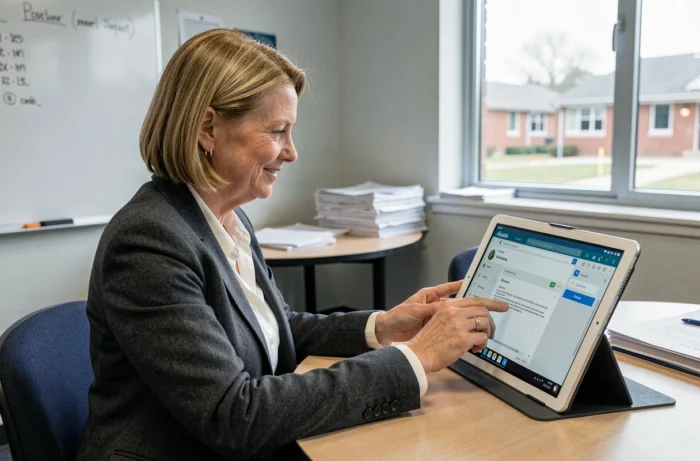
Forgotten password or locked account: what to do without going through the institution
Losing your academic password on a Sunday evening, before a new school year or an administrative deadline, remains a classic scenario. The password reset service of the Normandy academy works online, without needing to be physically in an institution.
To use it, you must have previously provided a personal backup email address or phone number in your academic profile. If you haven’t done this yet, it’s the first thing to set up at your next login.
- Go to the password reset page of the Normandy academy
- Enter your academic identifier
- A verification code is sent to your backup email or number
- Create a new password while respecting the complexity requirements imposed by the system
If you haven’t provided any backup contact information, the only recourse is to contact your academy’s IT support by phone or through the online form available on the Normandy academy website.
The academic email remains a fully-fledged work tool, even outside the walls of the institution. Taking a few minutes to save the correct portal address in your favorites and set up a backup address will help you avoid most common blockages.