September back-to-school, new position in a college in the Loire, and no one at the secretariat to explain how to retrieve email credentials. This scenario repeats every year for thousands of staff assigned to the Lyon academy. We take stock of the concrete steps to connect, common pitfalls, and recent changes that alter habits.
Credentials and NUMEN: what blocks the first connection to Lyon email
The number one problem is not technical; it is administrative. To access the Lyon academic webmail, two elements are needed: a username (usually in the format firstname.lastname) and a temporary password. This initial password is often the NUMEN, the national education identification number assigned to each agent.
The NUMEN appears on the appointment order or the letter of assignment. If it cannot be found, one must contact the establishment’s secretariat or the DSDEN of the relevant department (Ain, Loire, or Rhône). No other channel allows retrieval online without prior authentication.
The temporary password must be changed upon first connection. The interface requires it, but many staff postpone this step and find themselves blocked a few days later when the temporary password expires. You can access the Lyon academic email via the Convergence portal, provided that this initialization has been completed.
Connecting to the Convergence Lyon webmail: portal and concrete settings
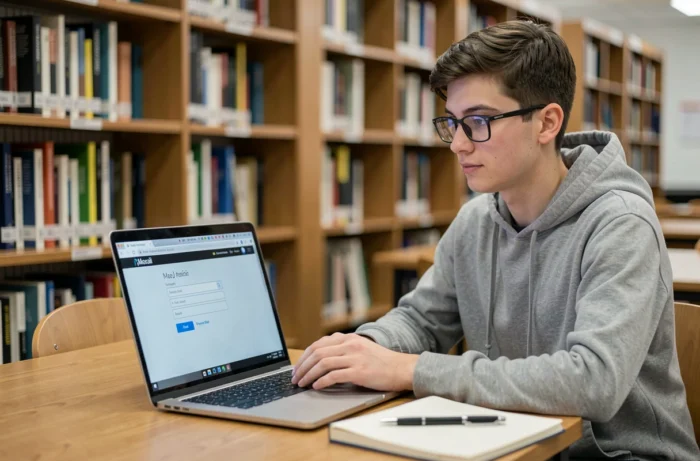
The Lyon academy webmail is based on the Convergence platform. It can be accessed from a browser, without installing any software. The connection address goes through the academic portal, often via the rectorate’s authentication page.
Connection steps from a browser
- Open the academic intranet portal (ARENA) from any up-to-date browser (Firefox, Chrome, Edge).
- Enter your academic username and personal password (the one set after changing the temporary password).
- Select the “Email” or “Convergence” application from the available services menu to directly reach the inbox.
- Ensure that the session is properly closed after consultation, especially on a shared workstation in the teachers’ lounge.
The connection works equally well from a personal computer or from a workstation in the establishment. On mobile, one can configure a mail client (native Android or iOS app) using the IMAP/SMTP settings provided by the academy, but feedback varies on the reliability of synchronization depending on devices.
IMAP and SMTP settings for an external mail client
For those who prefer Thunderbird or the Mail app on an iPhone, you need to provide the incoming server (IMAP) and the outgoing server (SMTP) of the academy. These settings are available on the help page of the academic portal, not in a welcome email. The port and encryption type (SSL/TLS) must match exactly; otherwise, the connection fails without an explicit error message.
Forwarding to Gmail or Outlook: a fading practice
For years, many staff have forwarded their academic emails to their personal Gmail or Outlook address. This habit allowed for centralization, but it poses a fundamental problem.
Several academies have technically removed automatic forwarding in 2025, for GDPR compliance reasons. Grenoble, Versailles, and Orléans-Tours have already blocked this function on the server side. The logic is simple: duplicating professional data (appointments, student information, administrative exchanges) to commercial servers located outside the scope of the national education system creates a legal risk.
The Lyon academy has not yet publicly communicated about a similar blockage, but the national trend is clear. It is better to get used to checking the Convergence webmail directly rather than relying on a forwarding that could be cut off without notice.

Forgotten password and locked account: procedures that work
A forgotten password does not reset like on a public service. There is no “forgot password” button with a link sent by SMS. The procedure goes through the academy’s assistance portal or direct contact with the rectorate’s IT service.
What you can do yourself
If you registered a backup email address when activating the account, an automatic reset is sometimes possible via the ARENA portal. This option depends on the account’s configuration at the time of activation.
What requires a support ticket
Without a registered backup email address, you must open a ticket with the DRANE (Regional Academic Delegation for Educational Digital). The processing time depends on the period: in September, requests flood in and response times lengthen. Anticipating by checking your access before the start of the school year avoids this queue.
Security of the Lyon academic email account: important actions
The academic email contains sensitive professional exchanges. A few practices reduce the risk of compromise.
- Choose a long password (at least twelve characters, mixing letters, numbers, and special characters) different from that used for personal accounts.
- Never save the password in a browser on a shared workstation, even in the computer room.
- Always log out after consultation, including on your own phone if others have access to it.
- Immediately report any suspicious email received at the academic address to the digital referent of the establishment.
Phishing targeting addresses in ac-lyon.fr exists. Campaigns imitating messages from the rectorate circulate regularly, especially around the times of job changes and back-to-school. An official email from the academy never asks you to enter your password via an external link.
Maintaining functional access to your Lyon academic email is primarily a matter of preparation. Checking your credentials in August, abandoning automatic forwarding to a personal inbox, and securing your password cover the vast majority of situations. The rest can be resolved with a ticket to the DRANE, provided you do not wait until the day before school starts to take care of it.